← 全部 Skill
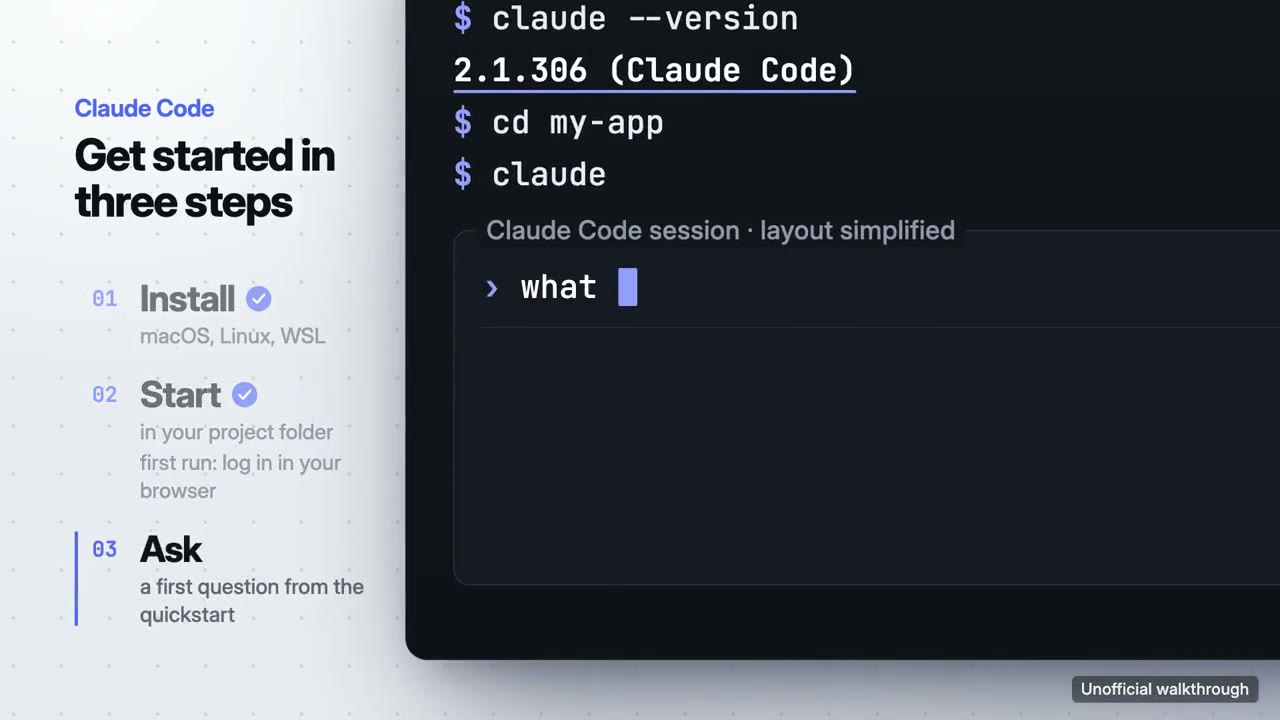
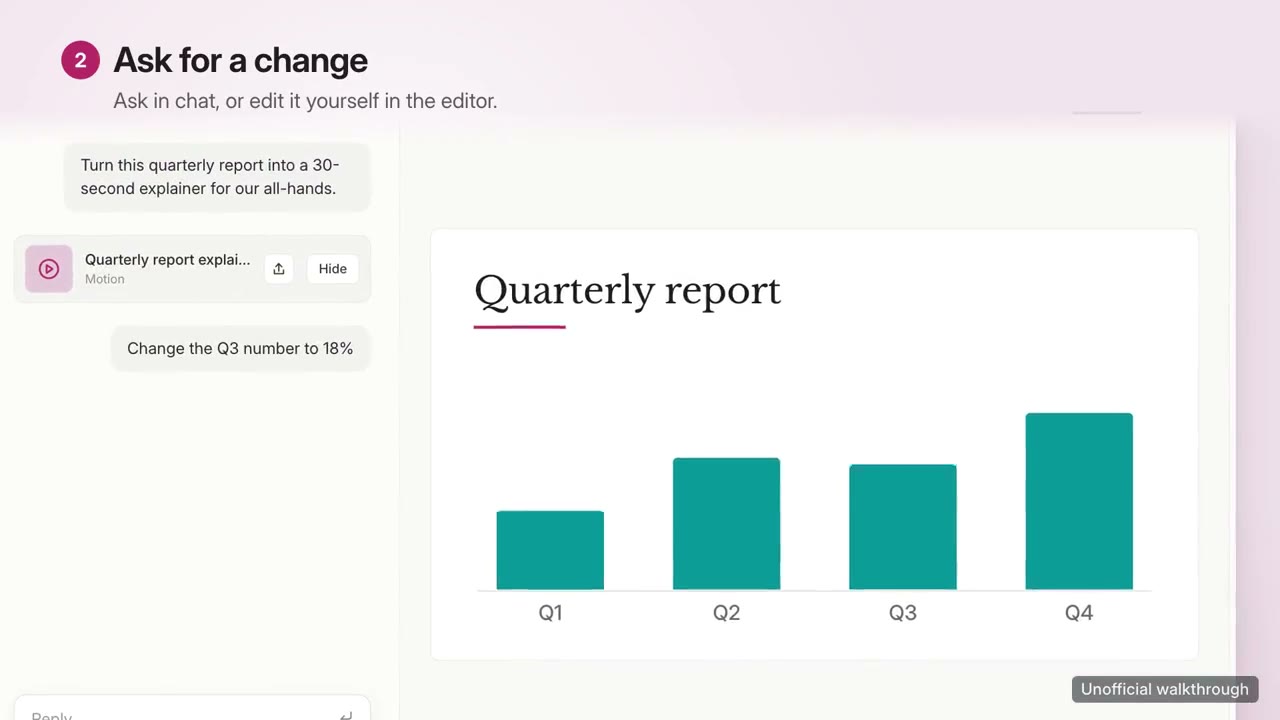
功能演示片
让产品在画面里被真实地用一遍:三步上手或一个功能演示,带配乐。
怎么用
- 1复制安装提示词,粘贴给你的 Agent。
- 2Agent 先运行 mo doctor,检查 Node.js、FFmpeg 和 Chrome;缺什么会告诉你怎么装。
- 3把素材交给它,在你的电脑上渲染出 MP4;想改哪里,直接说。
粘贴到 Claude Code、Codex、Cursor 或任何支持 Skill 的 Agent 中。
用它做出来的片子
开始只需要
无需 API Key有这个就能开始
- 网站或 App
运行依赖
Node.js 22+、FFmpeg、Chrome。不需要 API Key。
开始前,Agent 会运行 mo doctor 检查 Node.js、FFmpeg 和 Chrome,缺什么会告诉你怎么装;如果这个 Skill 还需要别的(比如字幕要用的 whisper),它的说明里会写明。
示例提示词
Use the walkthrough-director skill to make a 30-second onboarding walkthrough of this app in three steps, 16:9.
风格提示词(Claude Motion 或 Opus 5.5)
Make a 30-second 16:9 walkthrough for [who will watch, e.g. new users of our app], playing [where, e.g. our docs and onboarding email]. Use only the steps, commands, labels and screenshots I give below; don't change a word.

Show our interface used for real, one step at a time: each step's title settles, a cursor (or typed command) does one action, and the result appears and holds long enough to read. The camera pushes to where each step happens. End frame: the product name and the one command or link to start, held for 2 seconds.

Product: [name] (e.g. Plantpal)
Steps: [three steps] (e.g. "Add a plant" → "Take a photo" → "Get a care plan")
Attach: [screenshots of each step]
无需安装:粘贴到 Claude Motion(Team 或 Enterprise),或直接发给 Opus 5.5,就能得到相近的风格。每次运行结果会有差异;用 Skill 则根据你的素材,在你的电脑上渲染。